
Sign In
Overview
In this guide, you'll learn how to sign in to your MX Merchant™ account. You will be provided with plenty of flexibility on how you make it happen!
Prerequisites
- You must have already created an MX Merchant™ account. If you don’t have one yet, see the Additional Resources section below.
Signing in
Signing In With Username and Password
- Go to the MX Merchant™ sign-in page.
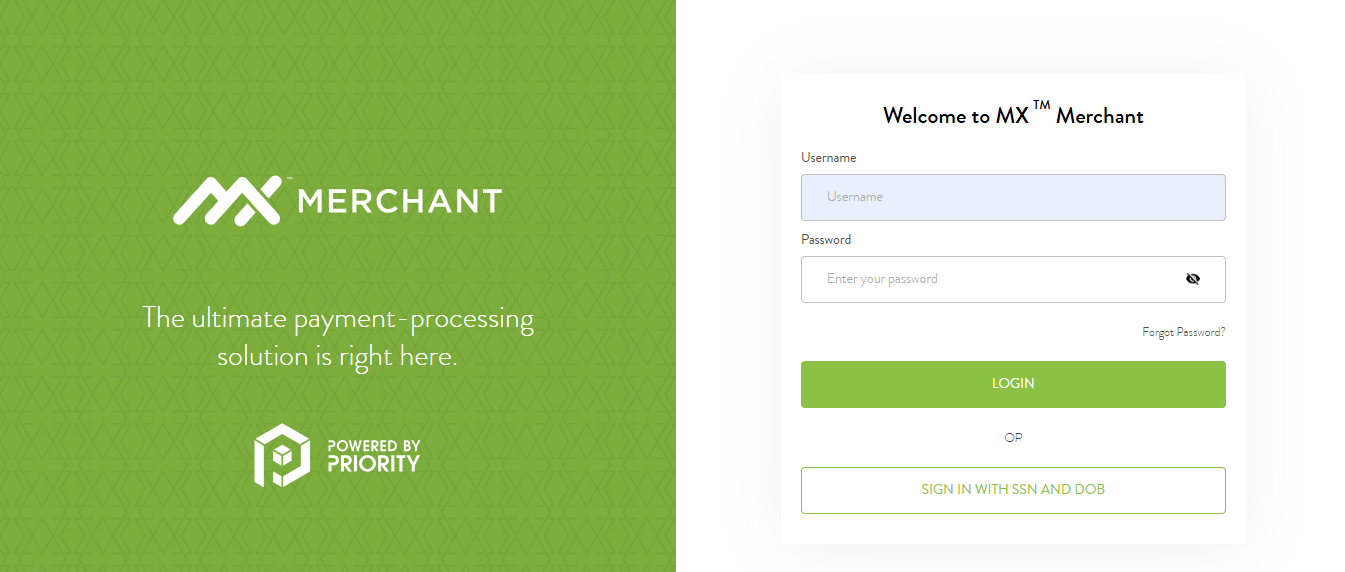
- In the right column, enter your Username and Password.
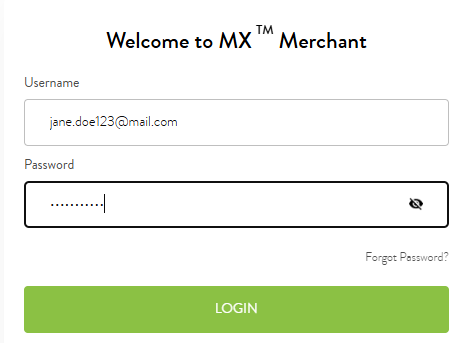
- Click Login
- If two-factor authentication is enabled, a 6-digit verification code will be sent either to your phone (as a text message) or to your email address. Enter that code in the blank spaces.
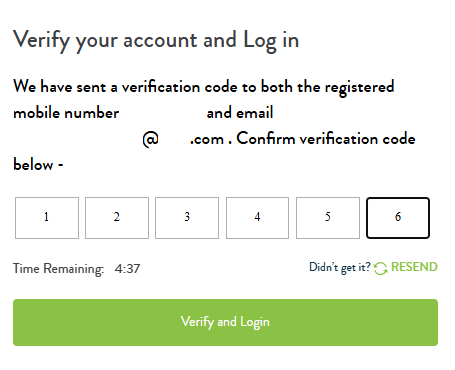
- Click Verify and Login.
Please note:
- If, at any time, you forget your password, click Forgot Password? to start the password reset process.
- If you'd like the app to preemptively enter your Username and Password next time you sign in, check the box Remember me on this computer. Otherwise, you'll need to re-enter your information manually.
- Every time you sign in, you will receive a different verification code. Make sure that you enter the most recent one to avoid reusing old codes, which are no longer valid.
Signing In With SSN and DOB
- Go to the MX Merchant™ sign-in page.
- Press Sign In with SSN and DOB.
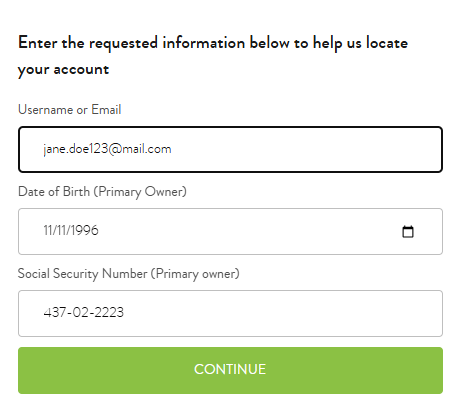
- Enter your Username or Email.
- Enter the Date of Birth and Social Security Number associated with the account.
- Click Continue.
- If two-factor authentication is enabled, a 6-digit verification code will be sent either to your phone (as a text message) or to your email address. Enter that code in the blank spaces.
- Click Verify and Login.
Please note:
- Every time you sign in, you will receive a different verification code. Make sure that you enter the most recent one to avoid reusing old codes, which are no longer valid.
Additional Resources
- If you still don't have an MX Merchant™ account, you should get in contact with the Priority Commerce onboarding by calling (844) 647-3616 or emailing [email protected].