
Products
Overview
The Products section allows you to view and manage all items in your inventory from a single, organized table. You can add new products with detailed information such as pricing, suppliers, and tax categories, as well as create multiple variants for different options like size or color. Keeping your product data accurate and up to date ensures smoother operations and better inventory control.
Viewing Products
To see your products, click the Inventory tab on the left-hand menu. Then, click Products. You will see a table listing your products, with the following information about each one:
- Name - Name of the product.
- Collection - Category or grouping the product belongs to. Learn more in the Collections portal guide.
- Supplier - Vendor or provider from whom the product is sourced. Learn more in the Suppliers portal guide.
- For Sale - Indicates whether the product is currently available for sale.
- On Hand - Quantity of the product currently in inventory, along with the number of variants available
- Price - Selling price of the product per unit.
- Last Ordered - Date when the product was most recently ordered from the supplier.
Adding a New Product
To add a new product:
- Click +Add product
- Fill in the following information:
- Product Name - Name or title of the product.
- Collection - Category or grouping the product belongs to.
- Description - Detailed information about the product, including features or specifications.
- Supplier - Vendor or provider from whom the product is sourced.
- Tax Category - Tax classification applied to the product for billing purposes.
- For Sale (Y/N) - Indicates whether the product is currently available for sale.
- Tags - Keywords or labels used to organize and search for the product.
Pricing and Inventory
- Multi Variant - Indicates whether the product has multiple variations (e.g., size, color). If set to Yes, it will display the Variants section below.
- Option Name - Name of the variation type (e.g., Size, Color).
- Option Value - Specific value of the variation (e.g., Small, Red).
- Add Another Option - Allows adding additional variation types for the product.
- SKU - Unique identifier assigned to a specific product or variant.
- Cost - Cost of acquiring or producing the product.
- Price - Selling price of the product.
- Custom Fields - Any additional fields that may me specific to your business. These can be set up in the Retail settings.
- Save.
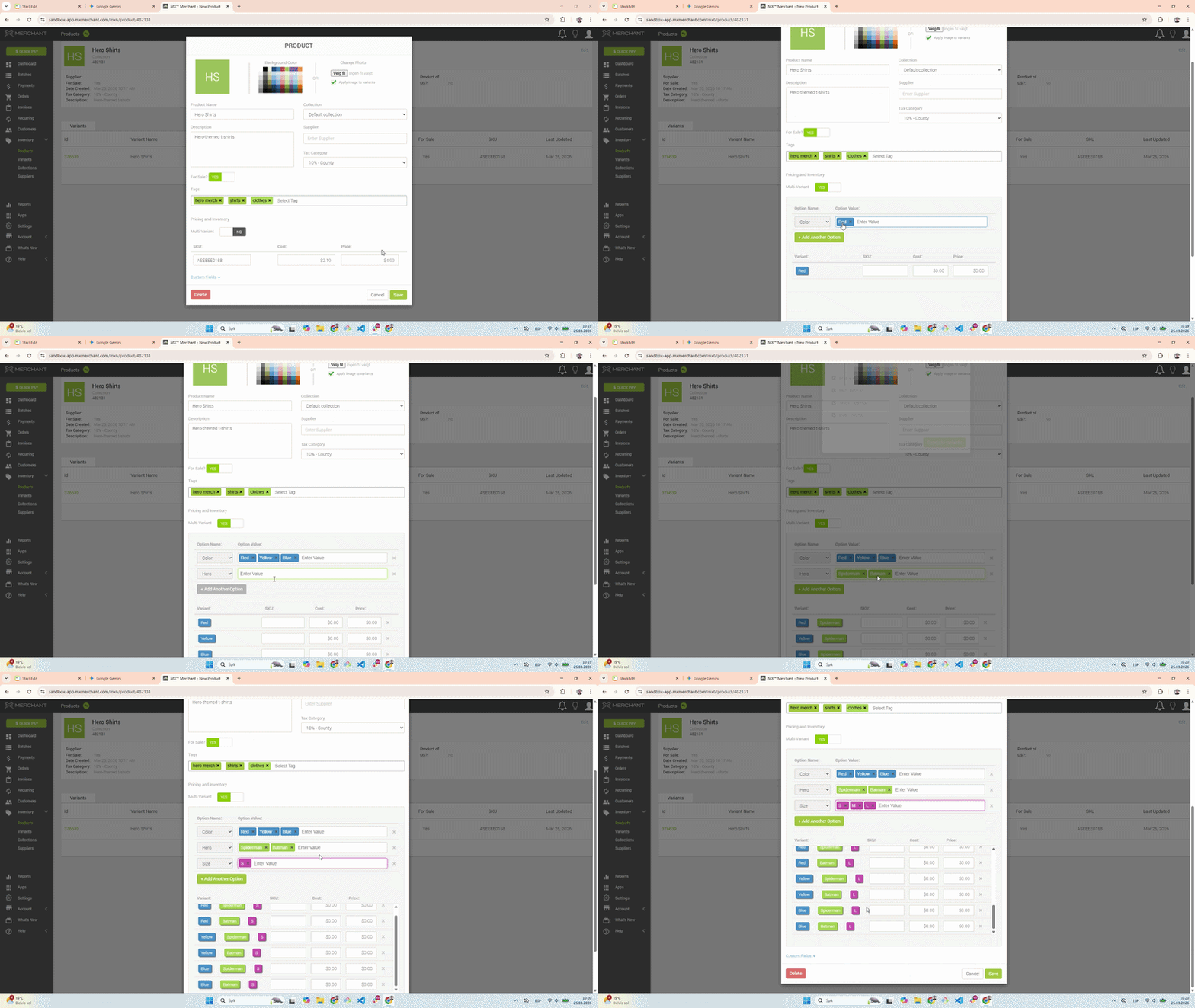
Adding Variants
To add variants to a product:
- Make sure that the Multi-variant option is enabled.
- Select the option name. These options are configured in the Retail settings.
- Enter Option Values for each option.
- If there is more than one option, MX Merchant will automatically create the variants at the bottom. For example, if you enter the following,
| Options | Option Values |
|---|---|
| Size | Small, Medium, Large |
| Color | Black, White |
MX Merchant will automatically create the following variants: Black Small, Black Medium, Black Large, White Small, White Medium, and White Large.
-
Add the SKU, Cost, and Price for each variant.
-
Save.
Managing Products
To edit an existing product:
- Click on the product name in green.
- You will see a window displaying the current product information, including all the fields mentioned in the Adding a New Product section, as well as the product's variants. You can now edit the product details and its variants:
- Modify the existing information as necessary, as outlined in the Adding a New Product section.
- Save.