
Orders
Overview
The Orders section in MX™ Merchant allows you to efficiently track, create, and manage all customer orders in one place. You can view detailed order information, add items, configure billing and shipping, and control the full order lifecycle from creation to payment and fulfillment. With built-in tools for filtering, exporting, and post-order actions, managing your business orders becomes streamlined and flexible.
Viewing orders:
To see the order log for your business:
- Click Orders in the navigation menu on the left.
- In this tab, you will see the following information:
- On the top of the screen, you wil see:
- Orders - Total number of orders made to your business.
- Total - Total dollar amount collected from orders.
- You will also see a table listing all your orders, with the following information about each one:
- Order Number - Unique identifier assigned to the order for tracking and reference purposes.
- Source - Origin of the order, indicating where it was created: POS, Telephone or Web.
- Customer - Name of the customer who placed the order.
- Total - Total amount charged for the order, including all items, taxes, and fees.
- Order Status - Current state of the order: Draft or Saved.
- Payment Status - Current state of the payment associated with the order: Unpaid or Paid.
- Fulfillment Status - Status indicating whether the order has been processed and delivered.
- Order Date - Date and time when the order was created.
- To look for a specific order, you may:
- Search by typing the order number and pressing Enter ↩.
- Filter by clicking the down arrow ▾ to the right of the search box, selecting the criteria you want to filter on, and clicking Apply.
- To export a list of orders as a CSV file, click the Export icon located in the top right corner. The file will be downloaded automatically to your computer.
Creating an Order:
In order to create a new order:
-
Click +Add Order.
-
Fill in the following information:
Customer
-
Customer Name - Look up an existing customer or create a new one.
-
Email - Customer's email address
-
Bill to - Address that the order will be billed to.
-
Ship to - Address where the order will be shipped.
Note:
If the customer is already registered on MX Merchant, Email, Bill to, and Ship to will be filled automatically. You will still be able to edit these fields if necessary.
Billing
-
Order Date - Date and time when the order was created. It is the current date by default.
-
Reference - Additional identifier or note associated with the order for internal or external tracking.
-
Shipment Date - Date when the order will be shipped or dispatched to the customer.
-
Source - Origin of the order, indicating how it is placed: POS, web, or telephone.
Items
-
Item - Name or identifier of the product included in the order.
-
Description - Brief details or summary of the product.
-
Quantity - Number of units of the product included in the order.
-
Unit Price - Price of a single unit of the product before discounts or taxes.
-
Unit Discount - Discount applied to each unit of the product, if applicable.
-
Item Total - Total dollar amount for the item, calculated based on quantity, unit price, and discounts.
Notes:
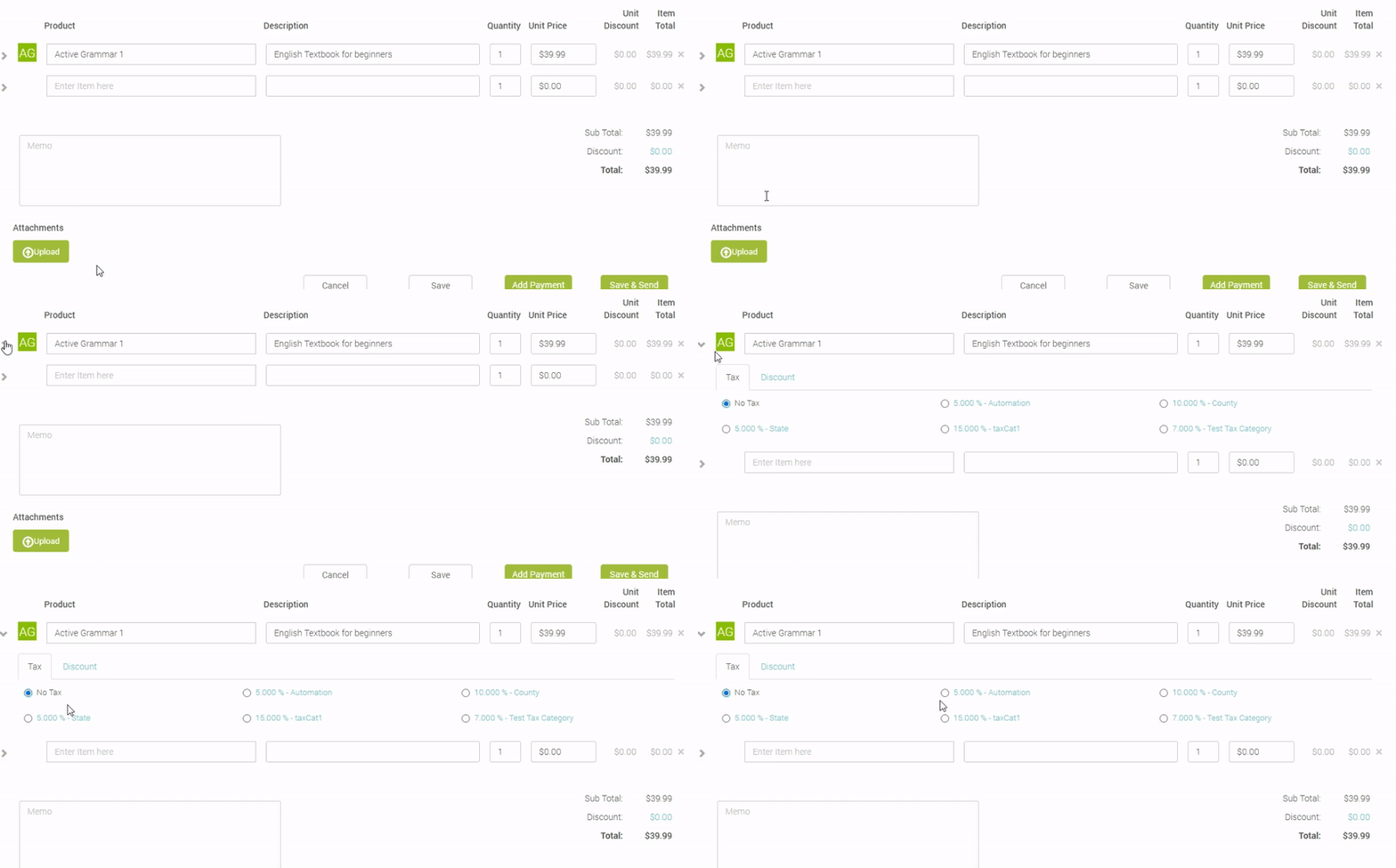
You may add as many items as needed. After entering one item, a new field will be generated. If a new field is not necessary, you may leave it blank.
To edit the tax and discount information for each item, click the arrow ❯ on the left.
- The Unit Discount and Item Total are updated automatically.
Shipping
-
Shipping - Shipping information, such as shipping company and/or plan.
-
Quantity - Number of times that shipping will be billed. You may bill the shipping for each product individually or just bill once collectively.
-
Unit Price - Price of a single shipping.
-
Unit Discount - Discount applied to the shipping of the product, if applicable.
-
Item Total - Total dollar amount for shipping, calculated based on quantity, unit price, and
Memo
This is dditional information about the invoice. This is completely optional.
- For finalizing the order, you have two options:
-
Save - This saves the order without billing. It can be edited later.
-
Place Order - The order is created and sent to the customer.
Additional Actions after Creation
When you enter an order, there are additional actions you can take:
- +Add Payment - You can start the payment process. See more in the Payments portal guide.
- The following options are diplayed in the More ▼ button next to +Add Payment:
- Cancel - Cancels the order and stops any further processing.
- Edit - Allows you to modify the order details.
- Print - Generates a printable version of the order.
- Resend - Sends the order again to the customer.
- Add Invoice - Creates and attaches an invoice to the order. See Invoices portal guide.
- Add Shipment - Adds shipment details associated with the order.